Design Faster Without Switching Tools
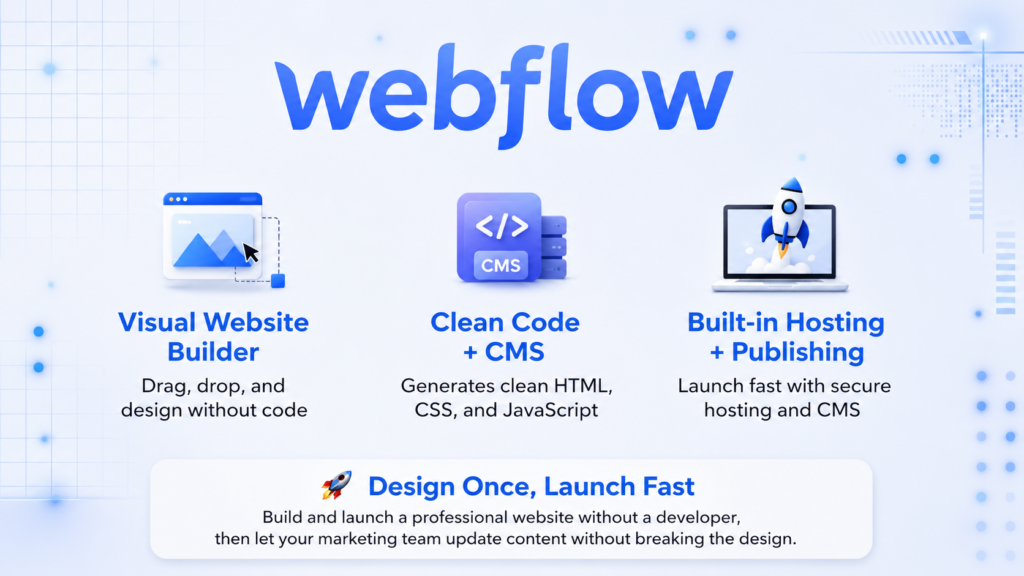
You want a site that looks custom built but can be updated by someone who is not a developer. You want clean code output but do not want to write it. You want a CMS that does not require a plugin stack and a WordPress maintenance window every Tuesday. That specific frustration, being stuck between design tools and development tools, is exactly what Webflow was built to resolve.
It occupies an unusual position in the web building landscape: professional enough for agencies building client sites, visual enough for marketers who need to push content without involving engineering, and technically sound enough that developers do not quietly rewrite everything after handoff.
But that middle ground positioning comes with real tradeoffs. This article breaks down what Webflow actually delivers in 2026, where the limits show up in practice, and who genuinely gets value from a paid subscription.
How the platform works underneath the surface
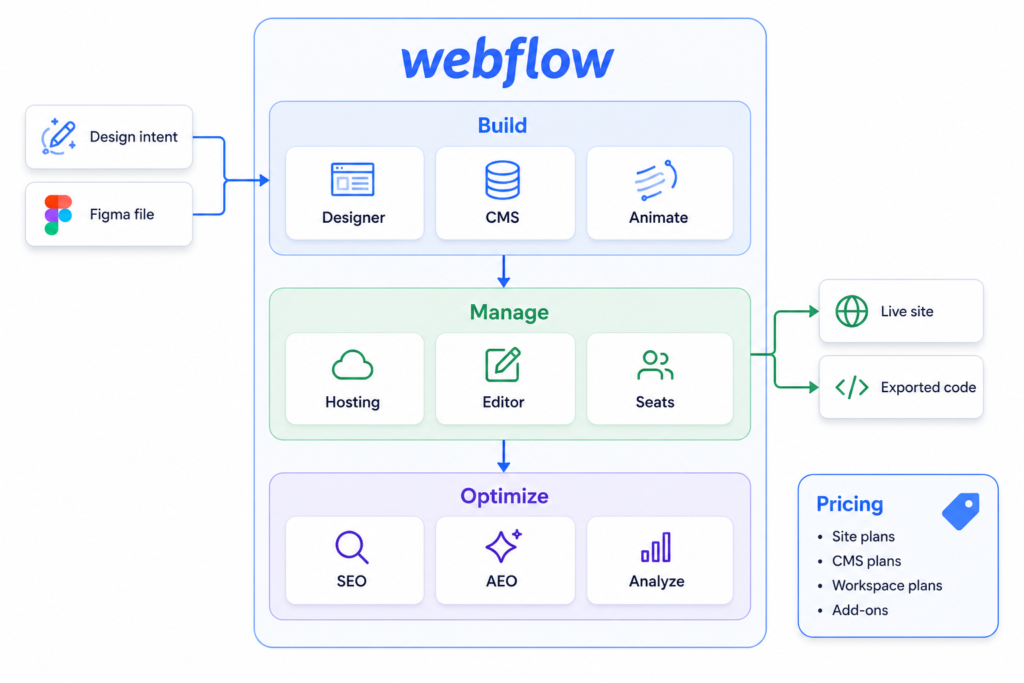
Webflow is a browser based visual editor that generates real HTML, CSS, and JavaScript as you design. You are not dragging boxes onto a canvas that renders as a table based layout. Every flexbox setting, grid column, and breakpoint adjustment you make in the Designer panel writes semantic, exportable code in the background.
This is the key distinction from tools like Wix or Squarespace. Webflow exposes the logic of front-end development visually, box model, padding versus margin, flex direction, z-index, which means you need to understand those concepts at least superficially, or you will spend an afternoon confused about why your element is not behaving the way you expected.
The CMS operates as a content schema system. You define Collection types, blog posts, team members, case studies, product listings, and attach fields. Those fields bind to your design templates, so adding a new blog post automatically inherits the layout you built once. It is closer in spirit to Contentful or Airtable than to a WordPress post editor.
The thing most users discover too late: Webflow’s publishing pipeline has a hard limitation that makes team workflows awkward. By default, everything lives on the main branch. You cannot selectively push one updated page to production while staging another. Staging an individual CMS item is effectively impossible, you stage the entire site or nothing.
From input to published page: where things break
Here is the real workflow, stripped of marketing language:
Input: A design intent (sketch, Figma file, or concept). Process: Build structure in the Designer using classes, components, and CMS Collections. Output: A hosted site on Webflow’s CDN with clean HTML/CSS and a visual content editor for non technical collaborators. Real world result: A production site that a marketer can update without breaking the layout.
Where it breaks: When two people try to edit the same page simultaneously, Webflow blocks one of them. There is no real time multiplayer editing at the designer level, unlike Figma. When your CMS grows beyond the plan’s item limit, you face a forced upgrade mid-project. When a client’s content team is non-technical, the training investment is higher than most agencies budget for upfront.
The features that actually affect your workflow
The Designer and class system
Webflow’s CSS class system is its most powerful and most frequently misused feature. Every style you apply to an element can be saved as a named class and reused across the entire site. Done correctly, this gives you a design system that stays consistent at scale. Done wrong, applying one off styles without class thinking, it produces a site that becomes impossible to maintain after three months.
The non obvious insight: the discipline you bring to naming and organizing classes at project start determines how maintainable the site is at month twelve. Most beginners skip this and pay for it later.
CMS Collections and relational content
Webflow’s CMS supports reference fields that link Collections together. A blog post can reference an Author Collection and a Category Collection, and those relationships display dynamically on the template. This makes it viable for resource hubs, documentation sites, and multi author platforms.
The limit: the CMS plan caps at 2,000 items. A site publishing ten articles per day hits that ceiling in under seven months. At that point, you are forced up to the Business plan, a jump from roughly $23 to $39 per month. That is manageable for most organizations, but it is a forced cost increase at an inconvenient moment if you are mid-quarter.
Interactions and animations
Webflow’s Interactions panel lets you build scroll triggered animations, hover states, parallax effects, and multi step sequences without writing JavaScript. For design forward marketing sites, this is a genuine differentiator. The output is lightweight and does not require a third party animation library for most effects.
The limitation: complex interaction sequences require significant time investment to configure, and the trigger logic can be unintuitive for users who do not think in animation timelines. If you want something truly custom, a 3D canvas experience, real WebGL, you are adding custom code anyway.
Figma to Webflow
The native Figma plugin imports design files directly into a Webflow project, converting frames and components into Webflow elements. In practice it produces a reasonable starting point, not a finished build. Auto layouts in Figma map reasonably well to flexbox in Webflow. Complex nested components often require manual cleanup. Treat the import as a 40 to 60 percent head start, not a finished translation.
AI Site Builder
Webflow added an AI site generator in 2025 that produces multi page sites from a text description. The output is visually coherent, uses Webflow’s native component structure, and handles different site types, SaaS, agency, portfolio, with reasonably appropriate section patterns. The honest assessment: it removes the blank canvas problem and generates a workable draft, but the results still look template-generated. Complex layouts and real brand expression require manual work on top.
SEO and the new AEO layer
Webflow’s built in SEO controls, per page meta tags, structured data, automatic sitemaps, 301 redirects, are genuinely solid. In 2026, the platform added an AEO (Answer Engine Optimization) layer designed to improve visibility in AI-driven search tools like Perplexity and Google AI Overviews. The Analyze add-on ($9 per month) tracks AI-referred traffic separately from organic. For teams investing in content marketing, this is a meaningful addition. For simple brochure sites, it is an upsell you do not need yet.
A complete build: from brief to live site
The scenario: a SaaS company wants a marketing site with a homepage, a features page, a blog, and a case studies section. Here is how a competent Webflow build actually runs.
Setup first: Define your global color variables, type styles, and spacing tokens before building a single section. Webflow lets you set these as site-wide variables. Skipping this step, the most common beginner mistake, means restyling components manually each time a brand color changes.
Structure the CMS early: Create your Blog Post and Case Study Collections before you design the templates. This lets you add dummy content to test layouts with real data rather than placeholder text, which changes how you size elements.
Build components, not pages: Webflow’s component system allows you to create reusable sections, a testimonial card, a pricing table, a CTA block, and place them across pages. A change to the component propagates everywhere. Teams that skip components and copy paste sections spend days on what should take an hour when a rebrand lands.
The beginner mistake: Designing in the desktop view only, then discovering the mobile layout is broken. Webflow’s breakpoint system works downward from the largest screen, styles cascade from desktop to tablet to mobile. Check every breakpoint after building each section, not at the end.
A better approach to the hero section prompt: Instead of typing a headline into a static text box, bind it to a CMS field from the start. Even for a homepage hero, CMS binding makes A/B testing and content updates far easier down the line.
Where Webflow earns its place in real workflows
Agency client sites:
A design agency builds a marketing site in Webflow, hands the CMS editor access to the client’s content team, and retains Designer access for layout changes. The client can update blog posts, team members, and case studies without touching the design. The agency avoids ongoing maintenance tickets for text edits. This is the workflow Webflow is built for and where it delivers the most clear ROI.
SaaS marketing sites:
Marketing teams at software companies use Webflow to push landing pages, update pricing tables, and launch feature pages without waiting for engineering sprint cycles. The Webflow Editor lets non technical team members make content changes while keeping the underlying design locked. One enterprise review noted that the marketing team can self serve 90 percent of webpage updates without developer involvement.
Content-heavy SEO sites:
A B2B company running a 300 article resource hub uses Webflow’s CMS Collections with author references, category filtering, and dynamic pagination. Compared to building this on WordPress with plugins, the maintenance overhead is lower and the design control is higher. For sites targeting thousands of keywords, Webflow’s technical SEO granularity gives it an edge over Framer or Squarespace.
Design portfolio sites:
Individual designers use Webflow to build portfolios that demonstrate their actual capabilities, custom interactions, scroll animations, case study layouts, without writing code. A portfolio built on Webflow signals a specific level of tool fluency that clients and employers recognize.
Where it does not fit:
Complex e-commerce at serious volume, where Shopify’s checkout infrastructure and fulfillment ecosystem are purpose built. Large publishing operations producing hundreds of articles per week, where WordPress’s editorial workflow tools still have an edge. Applications that require user authentication, server-side logic, or database writes beyond what a CMS supports.
Output comparison: same task, different approach
| Task | Without Webflow | With Webflow | Notes |
|---|---|---|---|
| Launch a new landing page | Developer sprint, 3–5 days | Marketer builds in Designer, 1-2 days | Requires prior setup of component library |
| Add a blog post | WordPress admin or dev push | CMS Editor, no design access needed | Layout stays locked; only content changes |
| Rebrand site-wide color | Find and replace in code | Update one global variable | Only works if variables were set up from day one |
| Build scroll animation | JavaScript or GSAP, developer time | Interactions panel, no code | Complex sequences still require significant setup time |
| Multi-language site | Separate sites or plugin stack | Localization add-on ($9/mo per locale) | Add-on cost adds up quickly beyond 3 locales |
| Export clean HTML/CSS | Manual coding | One-click export (requires Core Workspace plan) | Dynamic CMS content does not export |
The pricing reality
Webflow’s pricing structure confuses nearly everyone on first contact because it runs two separate billing systems. Site Plans cover hosting per published website. Workspace Plans cover team collaboration and staging access. You will likely pay for both.
Site Plans in 2026 start at $14 per month (Basic, annual billing) for static sites with no CMS, and move to $23 per month for the CMS plan, which is the entry point most content driven sites need. The Business plan starts at $39 per month and unlocks 10,000 CMS items. For teams, a Core Workspace plan adds approximately $19 per month, with full designer seats running $39 per month each. A realistic monthly cost for a small team, one site, CMS plan, two full seats, lands around $100 to $120 per month on annual billing.
The cost surprises that catch teams unprepared: bandwidth overages ($20 per month per 50 GB over limit), CMS item overage charges ($25 per month for an additional 5,000 items), and add-ons that look optional until you need them. The Optimize add-on for A/B testing starts at $299 per month, priced for enterprise conversion programs, not early stage sites. Localization costs $9 per month per locale on the Essential tier, meaning a site serving five languages adds $45 per month before anything else.
The late 2024 price hike of approximately 44 percent on CMS plans drew significant criticism from the freelancer and agency community. Webflow’s response positioned the increase as reflecting infrastructure investment, but the community reaction was genuine and the cost pressure on solo practitioners is real.
When paid plans make sense: as soon as you need a custom domain, which means the Basic plan at minimum. When the CMS plan becomes worth it: any site with a blog, team page, case studies, or any content that updates more than once a month. The real cost is often in how the tool is used, not the subscription itself, teams that skip proper class structure or component organization end up spending developer hours cleaning up what Webflow was supposed to eliminate.
Where it holds up and where it does not
Webflow’s design output is genuinely clean. The HTML and CSS it generates is semantic, exportable, and respected by developers who have to work with it later. For agencies that hand off code or need to host static exports on their own infrastructure, this matters. Most competing visual builders produce code that no developer wants to touch.
The CMS is more capable than it looks at first glance. Relational fields, reference collections, and dynamic filtering make it viable for complex content architectures that would require a headless CMS at ten times the cost. The limit is the item cap, not a technical limitation, but a pricing one.
The learning curve is real and should not be minimized. Coming from Wix or Squarespace, the box model and CSS logic that Webflow exposes can require two to three weeks before a designer feels competent. Coming from raw development, Webflow’s opinionated structure can feel constraining. The platform rewards people who understand front-end development conceptually, even if they never write a line of code.
The publishing pipeline is the most frequently cited operational frustration among power users. A single main branch, no granular staging of individual pages or CMS items, and a hard block on simultaneous designer editing create real friction for teams that push updates frequently. Webflow has a branching feature, but it is limited to one branch per page and does not fully solve the problem.
Who gets the most from this platform
Webflow works best for freelance and agency designers who build marketing sites for clients and need to hand off CMS editing without granting full design access. It works for in house marketing teams at companies where the engineering backlog is long and the team needs to push landing pages independently. It works for design-led founders who want a site that reflects real craft without hiring a developer.
It is a poor fit for teams that need a true e-commerce platform, Shopify remains the better choice once product catalogs, inventory management, and fulfillment complexity grow. It is a poor fit for organizations that need granular Git-based version control and CI/CD publishing workflows, developers who need that level of control over the codebase will find Webflow’s publishing model too rigid. It is also a poor fit for absolute beginners with no interest in learning how web layout logic works; Framer is a faster path to a live page for that profile.
Non-obvious ways to use the platform better
Set up global CSS variables for every color, font size, and spacing value before designing the first section. Webflow added native variable support, and teams that use it spend a fraction of the time on design system maintenance compared to those who apply hex values directly.
Use the Webflow to Figma relationship in reverse: export your Webflow component library back to Figma for design reviews. This keeps your design files and live build in sync rather than diverging over time as they do on most projects.
Build a client specific Style Guide page inside every project. Populate it with every text style, button state, color swatch, and component variant. This serves as live documentation that the client’s content team can reference, and it forces the developer to be intentional about the design system rather than making one off style decisions per page.
Take advantage of Webflow’s conditional visibility rules. You can show or hide elements based on CMS field values, a “featured” toggle, a “published” status, a category tag. This removes the need for custom scripts to handle most conditional display logic.
If you are managing multiple client sites, use Client Billing inside your Workspace to pass site plan costs directly to the client. This removes Webflow subscription costs from your agency overhead and creates a cleaner billing relationship with the client for ongoing hosting.
The bottom line
Webflow is the most capable visual web builder for designers and agencies building professional marketing sites that need to be maintained by non-technical teams. It produces clean code, runs a serious CMS, and eliminates the developer dependency that slows most content operations. Its key limitation is a pricing structure that escalates faster than most users expect and a publishing pipeline that creates real friction for teams pushing frequent updates. If your work involves building design forward sites that non-developers will update and maintain, there is no better tool at this price range. If you need a full e-commerce platform, a CI/CD deployment workflow, or a beginner-friendly setup that requires no conceptual knowledge of CSS, look elsewhere.
Common questions from real users
Can a non-designer build a site in Webflow without prior experience?
Technically yes, using the AI Site Builder or templates. But Webflow’s Designer panel exposes CSS logic that confuses users without front-end context. Expect a meaningful learning period. Framer or Squarespace are faster starting points for users with no design background.
What happens when I exceed my CMS item limit?
Webflow will prompt you to upgrade to the next plan tier. If you exceed the CMS plan’s 2,000 item cap, you move to the Business plan at $39 per month. You will not lose data, but publishing new content may be blocked until you upgrade.
Can I export my site and move it off Webflow hosting?
Static HTML, CSS, and JavaScript can be exported from projects on a Core Workspace plan or above. Dynamic CMS content does not export, those pages rely on Webflow’s servers to render. If your site is CMS driven, migrating off Webflow requires rebuilding the backend, not just moving files.
Is Webflow’s eCommerce viable for a real store?
For small catalogs and straightforward product pages, yes. For stores doing serious volume, the 2 percent transaction fee on the Standard plan and the absence of features like complex discount rules, subscriptions, and advanced fulfillment integrations make Shopify the more practical choice.
How does the dual billing system work in practice?
You pay one monthly bill for your Workspace plan (covering your design environment and team collaboration) and a separate bill per published site for each Site Plan. A three-person team with two live client sites will have three separate Webflow billing lines. Budget for both when estimating project costs.
Try it for yourself
Webflow’s free Starter plan gives you enough access to build a real prototype, test the Designer, and work with the CMS before committing to a paid tier. If you are evaluating it for a client project or an in house marketing site, building a stripped down version of your intended site structure on the free plan is a better way to assess fit than reading reviews. The learning curve becomes clear quickly, and so does whether the platform’s design control justifies the investment for your specific workflow. Start building on Webflow and decide based on direct experience rather than speculation.