Write Better Code in Less Time
Modern development is no longer limited by writing code, it’s constrained by context switching, debugging friction, and maintaining consistency across large code bases. Traditional AI coding assistants help with snippets, but they often lack awareness of the full project structure. This leads to broken implementations, shallow fixes, and time wasted verifying output.
This is where tools like Cursor change the workflow. Instead of acting as a passive autocomplete engine, Cursor operates as an AI-native development environment. If you try Cursor, you quickly notice it’s not just suggesting code, it’s navigating, editing, and reasoning across your entire project.
The result: fewer manual steps, faster iterations, and a noticeable reduction in debugging cycles, when used correctly.
What the Tool Actually Does
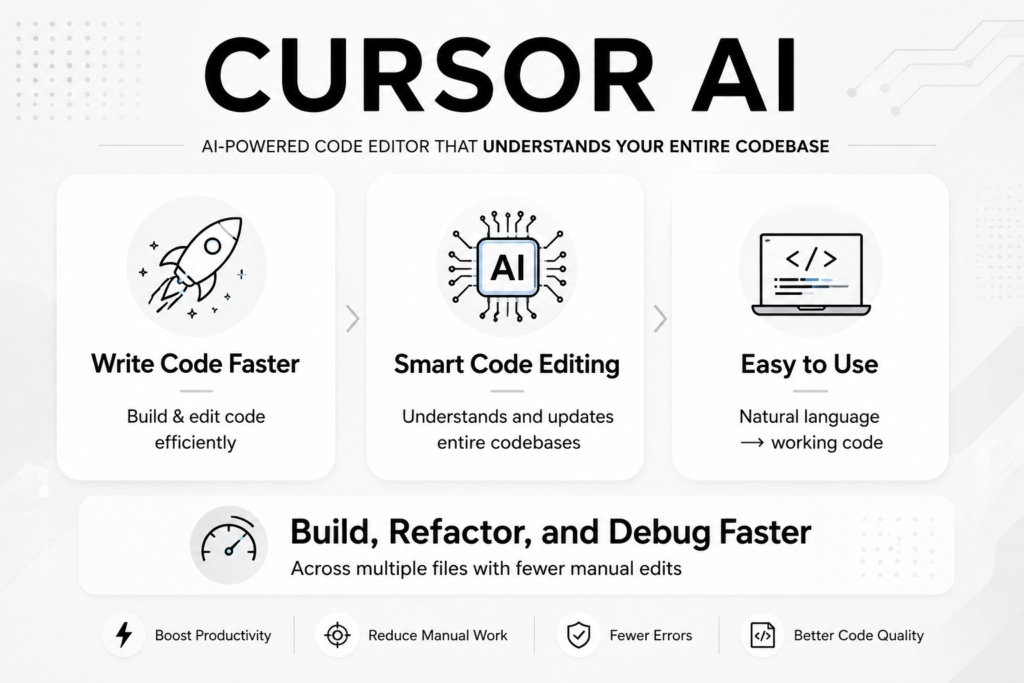
Cursor is a code editor built around large language models, designed to understand and manipulate entire repositories, not just isolated files.
It’s primarily used by developers who need to:
- Refactor large codebases
- Generate multi-file features
- Debug complex issues
- Accelerate repetitive engineering tasks
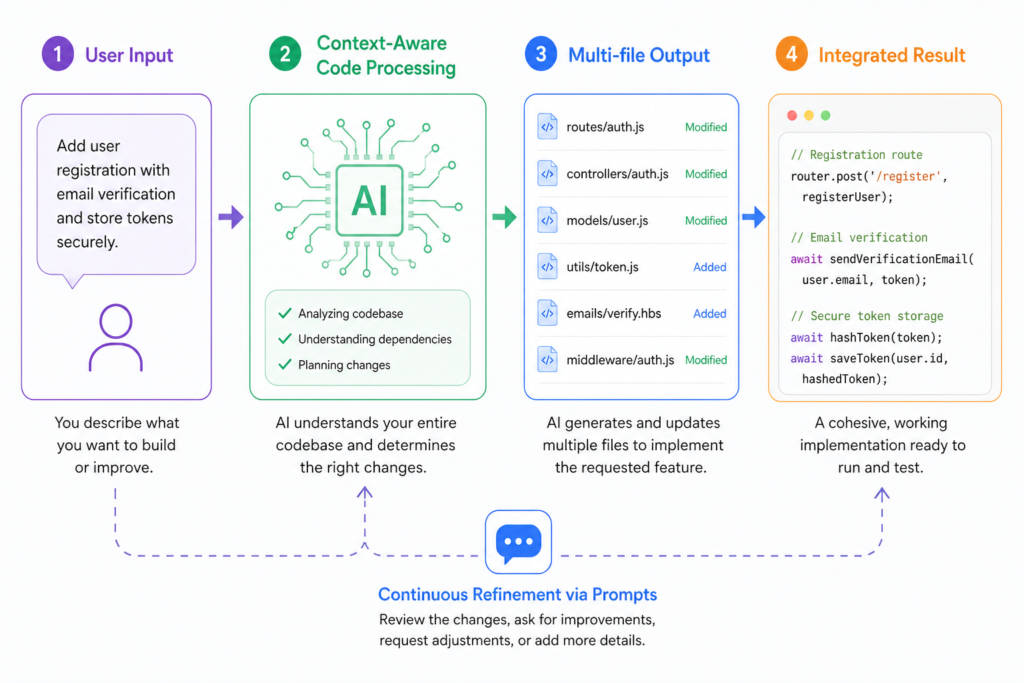
What makes Cursor different is how it treats your codebase as a system rather than a collection of files. When you ask it to implement a feature, it doesn’t just generate a function, it traces dependencies, updates related modules, and attempts to maintain consistency.
This works well when:
- The codebase is structured and readable
- The request is clearly scoped
- The developer reviews outputs actively
It struggles when:
- The project has poor organization
- Instructions are vague
- You expect perfect first pass results
One unexpected behavior: Cursor often overreaches. It may modify more files than necessary, which can introduce subtle bugs if not reviewed carefully.
Key Features
Cursor’s real strength is its ability to operate across multiple files simultaneously. When you request a feature like “add authentication”, it doesn’t just create a login function, it touches routes, middleware, database layers, and sometimes UI components.
In practice, this saves time, but it also means you must track changes closely. A common issue is over-modification, Cursor may refactor parts of the code you didn’t intend to change.
Another critical feature is inline editing with context awareness. Instead of rewriting entire files, Cursor can surgically modify sections of code. This is particularly useful for debugging.
However, this precision depends heavily on how you phrase prompts. Ambiguous instructions often lead to partial or incorrect edits.
The chat based interaction within the editor allows iterative refinement. You can ask follow-up questions, request improvements, or revert changes. This creates a feedback loop that feels closer to pair programming than automation.
How to Use It
A typical workflow starts with proper setup, something many users skip. You need to ensure your repository is clean, dependencies are clear, and file naming is consistent. Cursor relies heavily on structure.
Once inside the editor, you define a task, such as implementing a feature or fixing a bug.
Instead of writing:
“Fix this issue”
A better prompt is:
“Fix the authentication bug where tokens expire incorrectly. Only modify backend logic and keep current API structure.”
During execution, Cursor suggests changes across files. This is where most mistakes happen—users accept all changes without review.
After applying changes:
- Run tests immediately
- Check modified files manually
- Validate edge cases
A common beginner mistake is treating Cursor like autocomplete. It’s not. It’s closer to a junior developer that needs direction and oversight.
Fix: break tasks into smaller steps and validate incrementally.
Use Cases
In backend development, Cursor is often used to refactor APIs. Instead of manually updating endpoints, you can instruct it to restructure routes and handle validation consistently. The result is faster refactoring, but only if you verify logic flow afterward.
For frontend projects, it can generate components based on existing design patterns. However, it sometimes ignores subtle styling conventions unless explicitly mentioned.
In debugging scenarios, Cursor is particularly effective. You can paste an error and ask for root cause analysis. It often identifies issues faster than manual inspection, especially in large codebases.
For startups, Cursor accelerates MVP development. Features that would take days can be scaffolded in hours. The trade-off is that the generated code may require cleanup later.
In team environments, it helps maintain consistency when adding features across shared repositories. But without code reviews, it can introduce inconsistencies at scale.
Example Outputs
| Task | Without AI | With Cursor |
|---|---|---|
| Add authentication | 4-6 hours manual integration | 1-2 hours with review |
| Debug API error | Trial-and-error debugging | Faster root cause suggestion |
| Refactor codebase | Risky and time-consuming | Faster but requires validation |
| Create UI component | Manual coding from scratch | Quick generation, needs polish |
Pricing
Cursor typically follows a subscription-based model, with tiers depending on usage and access to advanced AI models.
It becomes worth paying when:
- You work on complex or large-scale projects
- You frequently refactor or debug
- Time savings outweigh subscription cost
A common mistake is overusing it for simple tasks. This increases cost without meaningful productivity gains.
The real cost is often how the tool is used, not the subscription itself.
Strengths and Limitations
Cursor performs exceptionally well when dealing with structured, multi file tasks. Its ability to understand relationships across a codebase is its biggest advantage. This reduces manual coordination work significantly.
However, it struggles with ambiguity. If instructions are not precise, outputs can become inconsistent or overly broad.
Another limitation is trust. Cursor can generate convincing but flawed logic. This matters in production environments where silent bugs can be costly.
The trade off is clear: speed vs. control. Cursor gives you speed, but you must maintain control.
Who Should Use It
Cursor is best suited for:
- Professional developers working on large projects
- Teams that need faster iteration cycles
- Engineers comfortable reviewing AI-generated code
It’s not ideal for:
- Beginners learning programming fundamentals
- Small scripts or one off tasks
- Users expecting fully autonomous coding
Advanced Tips
Use scoped prompts. Always define boundaries like “only modify this file” or “do not change API structure.” This prevents unnecessary edits.
Leverage incremental execution. Instead of asking for full features, build step-by-step. This improves accuracy and reduces debugging time.
Combine Cursor with testing frameworks. Run tests after every change. This creates a safety net for AI-generated code.
Use it for refactoring, not just creation. Cursor is often more effective at improving existing code than writing new systems from scratch.
Final Verdict
Cursor is one of the most effective AI-powered development environments available in 2026. It significantly reduces time spent on repetitive and structural coding tasks.
It’s worth using if you’re working on complex systems and can actively review output.
The key limitation is control, without careful oversight, it can introduce subtle issues.
Used correctly, it’s a force multiplier. Used blindly, it becomes a liability.
FAQ
Is Cursor better than traditional IDEs?
It depends on your workflow. Cursor excels in AI-assisted development but still requires developer oversight.
Does it replace developers?
No. It accelerates development but still depends on human judgment and validation.
Can it handle large codebases?
Yes, but performance depends on how well the codebase is structured.
Is it safe for production code?
Only with proper review and testing. Never deploy without validation.
Call to Action
If you’re working on real-world projects and want to reduce development time without sacrificing flexibility, it’s worth testing Cursor in a controlled workflow.
Start using Cursor and evaluate it on a real task, not a demo.