Tools aren’t the issue, misalignment between tools and actual work is.
Tasks live in one place, docs in another, communication in a third, and priorities constantly shift without a clear structure tying everything together.
Traditional project management platforms often create more overhead than clarity. They require rigid workflows, force teams into predefined structures, and break down when projects become dynamic.
This is where ClickUp positions itself differently. Instead of acting as a single purpose tool, it tries to unify task management, documentation, collaboration, and automation into one system.
The real value isn’t just organization, it’s reducing friction between planning and execution. When used properly, ClickUp becomes less of a tool and more of an operational layer for how work moves.
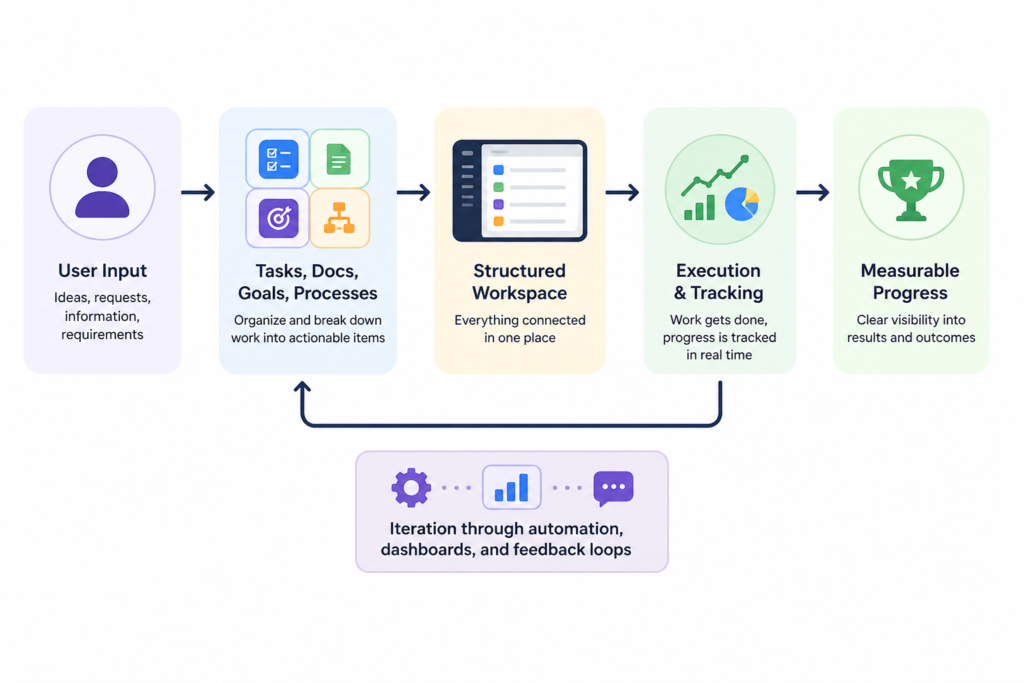
How ClickUp Handles Real Work
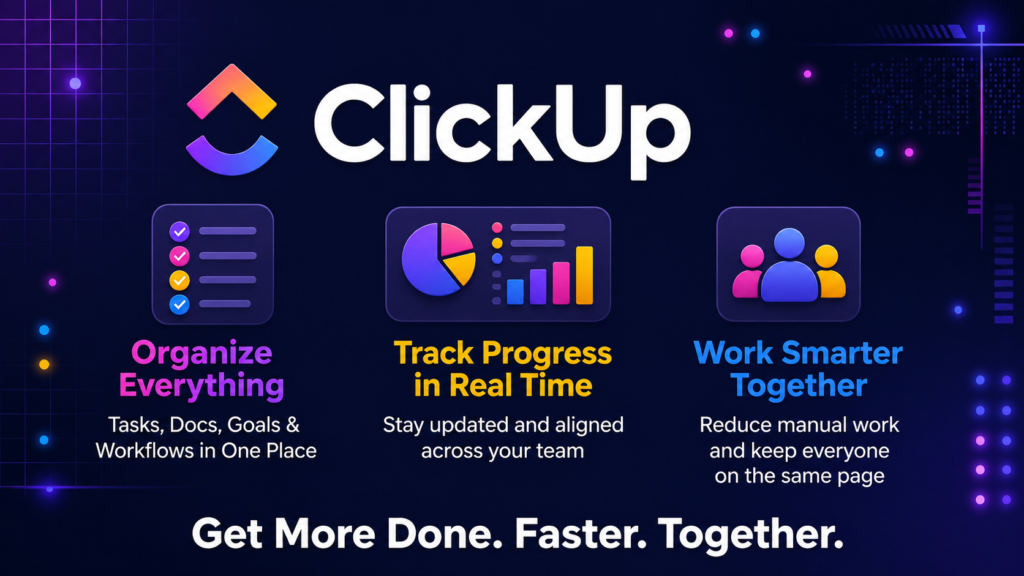
ClickUp is a modular productivity platform designed to centralize workflows across teams. It combines task management, documentation, goal tracking, time tracking, and automation into a single environment.
In practice, it acts as a customizable operating system for work.
It performs well when:
- Work involves multiple moving parts (projects, dependencies, deadlines)
- Teams need visibility across tasks and progress
- Processes need to be repeatable and scalable
It struggles when:
- Users expect it to work out-of-the-box without setup
- Teams lack defined workflows
- Simplicity is more important than flexibility
A common mismatch happens here: users expect a simple task manager, but ClickUp behaves more like a system builder. Without structure, it feels overwhelming. With structure, it becomes powerful.
Key Features
The hierarchy system Spaces, Folders, Lists, Tasks is where everything starts. It allows you to map your organization into a structured system. In a marketing team, for example, campaigns might be folders, channels as lists, and deliverables as tasks. The flexibility is high, but so is the risk of over complication.
Custom fields are one of the most impactful features. They let you track specific data like priority scores, content stages, or client status. This becomes critical when managing workflows beyond simple to-do lists. The limitation is that too many fields slow down usability and make views cluttered.
Multiple views (List, Board, Calendar, Gantt) allow the same data to be interpreted differently. A product manager might rely on Gantt for dependencies, while a content team uses Board for workflow stages. However, switching views frequently can create confusion if naming conventions aren’t consistent.
Automation reduces repetitive actions, assigning tasks, updating statuses, sending notifications. It works best for predictable workflows, like content pipelines or on boarding sequences. It tends to fail when processes are inconsistent or poorly defined.
Docs integration allows documentation and execution to coexist. This eliminates the common gap between planning and doing. The limitation is that it’s not as robust as dedicated documentation tools for complex knowledge bases.
How to Use It
A typical effective setup begins with defining structure before adding tasks. Most users skip this and start creating tasks immediately, which leads to chaos.
Start by mapping your workflow:
- Define Spaces (e.g., Marketing, Product, Operations)
- Create Lists based on workflow stages or project types
- Add custom fields that reflect how decisions are made
During usage, tasks move through statuses, get assigned, and updated. This is where most inefficiencies appear, unclear ownership, inconsistent naming, or missing context.
After execution, dashboards and reports become valuable. They show bottlenecks, delays, and workload distribution.
Where things break:
- Too many statuses with unclear meaning
- Overuse of automations without clear logic
- Lack of naming standards
A better approach is to simplify:
- Limit statuses to meaningful stages
- Use automation only for repetitive, predictable steps
Improved workflow example:
Instead of creating generic tasks like “Write blog post”, structure it as:
- Task: “SEO Article – Topic X”
- Custom fields: Stage (Research, Draft, Review), Priority Score, Target Keyword
Common beginner mistake:
Creating too many Spaces too early.
Fix:
Start with fewer Spaces and expand only when workflows clearly require separation.
Real Life Use Cases
A content team uses ClickUp to manage editorial pipelines. Tasks move from research to publishing with clear ownership. The result is consistent output, but only after reducing unnecessary statuses.
A product team tracks feature development using dependencies and timelines. This improves visibility but requires strict discipline in updating task progress.
A small agency uses ClickUp to manage client work. Custom fields track client status and deadlines. The system works well until clients require highly customized workflows, which adds complexity.
A startup uses it as an internal operating system, combining docs, tasks, and goals. This reduces tool switching but demands careful on boarding for new team members.
Example Outputs
| Task | Without AI | With ClickUp |
|---|---|---|
| Manage content calendar | Scattered in spreadsheets | Centralized with statuses and deadlines |
| Track project progress | Manual updates, unclear ownership | Real time updates with assigned responsibilities |
| Handle recurring tasks | Recreated each time | Automated with templates |
| Team collaboration | Email threads, lost context | Comments and task-level communication |
Pricing
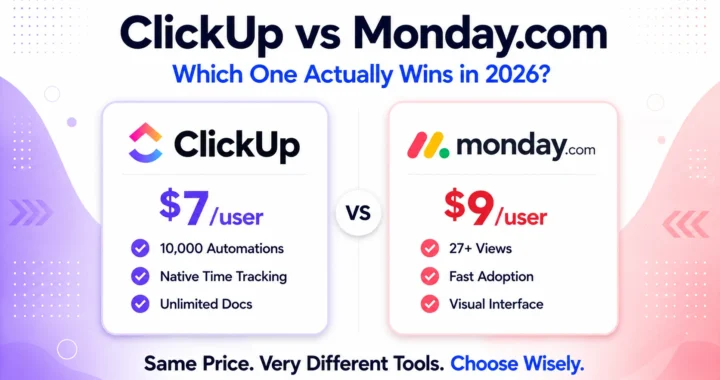
ClickUp offers tiered pricing, including a free plan with limited features and paid plans that unlock advanced capabilities like automation, dashboards, and integrations.
It becomes worth paying when:
- Teams need automation to reduce manual work
- Reporting and visibility become critical
- Multiple teams collaborate in one system
A common mistake is upgrading too early without optimizing workflows. The real cost is often how the tool is used, not the subscription itself.
Strengths and Limitations
ClickUp performs well as a centralized system. It reduces tool fragmentation and creates a single source of truth. This matters because context switching is one of the biggest productivity drains.
Its flexibility is both a strength and a weakness. It allows customization for almost any workflow, but this often leads to over-engineering. Teams spend more time organizing work than doing it.
Performance can degrade in large workspaces. This becomes noticeable when loading complex views or dashboards, especially with heavy automation.
The learning curve is significant. New users often feel overwhelmed, which slows adoption unless proper onboarding is in place.
Who Should Use It
ClickUp is best suited for:
- Teams managing complex, multi-step workflows
- Agencies handling multiple clients and projects
- Organizations looking to consolidate tools
It’s not ideal for:
- Individuals needing a simple task list
- Teams without defined processes
- Users who prefer minimal interfaces
Advanced Tips
Use templates aggressively. Instead of recreating workflows, build reusable systems for recurring processes.
Limit customization early. Start simple, then evolve based on actual usage patterns, not assumptions.
Use dashboards sparingly. Focus only on metrics that drive decisions, not vanity tracking.
Standardize naming conventions. This reduces confusion across teams and improves searchability.
Think in systems, not tasks. ClickUp works best when you design workflows, not just lists of work.
Final Verdict
ClickUp is a powerful system builder disguised as a productivity tool. It delivers real value when workflows are clearly defined and consistently applied.
It is worth using if you need structure across complex operations. It is less effective if you’re looking for simplicity or quick setup.
The key limitation is its complexity, without discipline, it becomes overwhelming instead of useful.
FAQ
Is ClickUp suitable for small teams?
Yes, but only if the team invests time in setting up a clear structure. Otherwise, it can feel unnecessarily complex.
Does ClickUp replace other tools?
It can replace several tools (task management, docs, tracking), but not always at the same depth as specialized tools.
How long does it take to learn?
Basic usage is quick, but mastering workflows and automation can take weeks.
Is it good for personal productivity?
It works, but it’s often more than what an individual needs.
What’s the biggest mistake users make?
Over customizing too early without understanding how their workflow actually operates.
Call to Action
If your current workflow feels fragmented and difficult to scale, the best way to evaluate ClickUp is to implement it in one real project and observe how work flows through it.
Start using ClickUp and structure a single workflow before expanding.