If you write anything regularly – emails, essays, reports – you’ve probably had this experience: you reread your text three times, it looks fine, and then someone else spots obvious mistakes instantly.
Traditional spell checkers don’t help much. They catch typos, but they don’t fix awkward phrasing, unclear sentences, or tone issues. That’s where tools like Grammarly promise more.
I spent several weeks using Grammarly across emails, Google Docs, and long-form writing. Not just testing features, but relying on it in real work.
In this article, you’ll learn:
- What Grammarly actually improves (and what it doesn’t)
- How to use it effectively in real workflows
- The mistakes most users make
- Whether it’s worth upgrading in 2026
What the Tool Actually Does
At its core, Grammarly reads your writing and suggests improvements.
Not just grammar, but:
- Sentence clarity
- Tone (formal, casual, confident)
- Word choice
- Structure
Who it’s for
- Students
- Professionals
- Non-native English writers
- Anyone writing frequently
What problem it solves
It reduces friction between what you mean and what you actually write.
When it works best
- Editing finished drafts
- Improving clarity
- Catching subtle mistakes
When it doesn’t
- Writing from scratch
- Highly technical or niche content
- Creative writing where style matters
Real insight
At first, I thought Grammarly would “fix everything automatically.”
In practice, it works much better as an editor, not a writer.
Key Features (Tested in Real Use)
1. Grammar & Spelling Correction
What it does: Fixes basic mistakes instantly
Why it matters: Saves time and embarrassment
Example
- “He go to school yesterday” → corrected automatically
Limitation
Sometimes it over-corrects stylistic choices.
2. Clarity Suggestions
What it does: Rewrites sentences to be easier to understand
Why it matters: This is where real value shows up
Example
- Original: “Due to the fact that we were delayed…”
- Suggestion: “Because we were delayed…”
One thing I noticed
This feature improves readability fast – but can make writing feel generic if overused.
3. Tone Detection
What it does: Labels your tone (formal, friendly, assertive)
Why it matters: Useful for emails and professional communication
Example
An email I wrote sounded “neutral” when I intended it to be “friendly.”
Hidden issue
Tone suggestions are not always context-aware.
4. Rewrite Suggestions (Premium)
What it does: Offers full sentence rewrites
Why it matters: Helps when you’re stuck
Example
It can turn a messy paragraph into something readable in one click.
Limitation
Sometimes loses your original meaning.
5. Plagiarism Checker (Premium)
What it does: Scans text against online sources
Why it matters: Essential for academic writing
Limitation
Slower than expected on long documents.
How to Use It (Real Workflow)
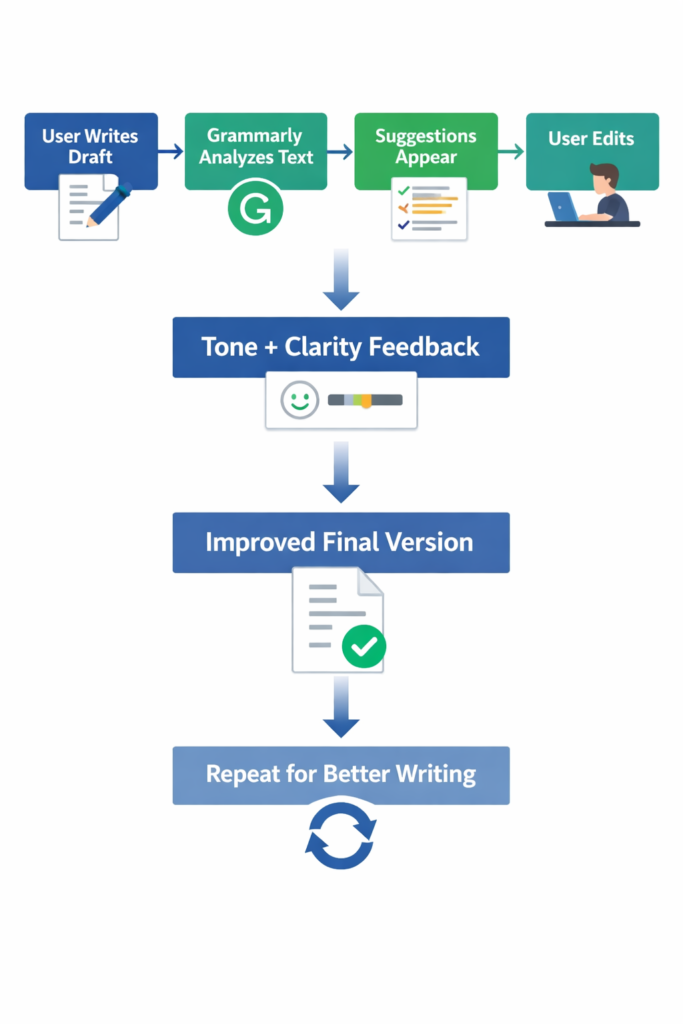
Here’s how I actually used Grammarly for a professional email.
Step 1: Write a Rough Draft
Hi,
I am writing to inform you that the project is delayed because of some issues.
We will try to finish it soon.
Step 2: Grammarly Suggestions
- “inform you” → “let you know”
- “because of some issues” → flagged as vague
- Tone: “neutral”
Step 3: Improved Version
Hi,
I wanted to let you know that the project is delayed due to technical issues.
We’re working to complete it as soon as possible.
Step 4: Final Refinement
Hi,
I wanted to let you know that the project is currently delayed due to technical issues.
We’re actively working to resolve them and will complete it as soon as possible.
Common Beginner Mistake
Mistake: Accepting every suggestion blindly
Fix:
Be selective. Grammarly improves clarity – but you should control meaning.
Better Approach
Use Grammarly in two passes:
- Fix grammar
- Review clarity suggestions manually
Real-Life Use Cases
1. Writing Emails
Situation: Daily client communication
Result: Fewer misunderstandings
Insight: Tone detection is surprisingly useful here
2. Academic Writing
Situation: Essays and reports
Result: Cleaner structure
What fails: Doesn’t understand subject-specific terminology well
3. Content Writing
Situation: Blog posts
Result: Better readability
Insight: Helps simplify overly complex sentences
4. Non-Native English Writing
Situation: Writing in a second language
Result: Major improvement in fluency
Insight: One of Grammarly’s strongest use cases
Example Outputs
| Task | Without AI | With Grammarly |
|---|---|---|
| “We have problem with system.” | “We’re experiencing an issue with the system.” | |
| Essay sentence | “This shows that many things is wrong.” | “This shows that many things are wrong.” |
| Business message | “We will fix soon.” | “We’ll resolve this as soon as possible.” |
Pricing (With Strategy)
| Plan | What You Get | When to Use |
|---|---|---|
| Free | Grammar, spelling, basic tone | Enough for most users |
| Premium | Rewrites, clarity, plagiarism | Heavy writing tasks |
When to upgrade
- You write daily
- You care about tone and clarity
Cost mistake to avoid
Upgrading too early. The free version is surprisingly capable.
Pros and Cons
Pros
- Extremely easy to use
- Works everywhere (browser, apps)
- Strong clarity improvements
- Real-time feedback
Cons
- Can make writing sound generic
- Over-suggests changes
- Premium features are expensive
- Not great for creative writing
Who Should Use It
Best for
- Students
- Professionals
- Non-native English speakers
- Anyone writing emails daily
Not ideal for
- Creative writers
- Highly technical experts
- People expecting full automation
Advanced Tips
1. Don’t edit while writing
Write first. Edit later with Grammarly.
2. Use tone intentionally
Adjust your writing based on tone feedback—not blindly.
3. Combine with human judgment
Grammarly improves clarity, not ideas.
4. Ignore some suggestions
Not every “improvement” is actually better.
5. Use it as a training tool
Over time, you start making fewer mistakes naturally.
Final Verdict
Grammarly is not a magic writing tool – but it is a very effective editor.
It won’t replace thinking or writing skill.
But it will make your writing cleaner, clearer, and more professional.
Best use case:
Editing emails, documents, and everyday writing.
Recommendation:
Start with the free version. Upgrade only if you write frequently and need clarity improvements.
FAQ
1. Is Grammarly accurate?
Mostly yes, but not perfect. Always review suggestions.
2. Does it replace human proofreading?
No. It helps—but doesn’t fully replace it.
3. Is the free version enough?
For most users, yes.
4. Does it work offline?
Limited functionality. It works best online.
5. Can it improve writing skills?
Yes—if you pay attention to corrections over time.
Call to Action
If you write regularly, the best way to understand Grammarly is to use it on your own work.
Install it, write something real, and pay attention to what it changes – and what it gets wrong.
That’s where the real value shows up.